🐞 WinDbg + QEMU + Patina UEFI - Debugging Guide
Overview
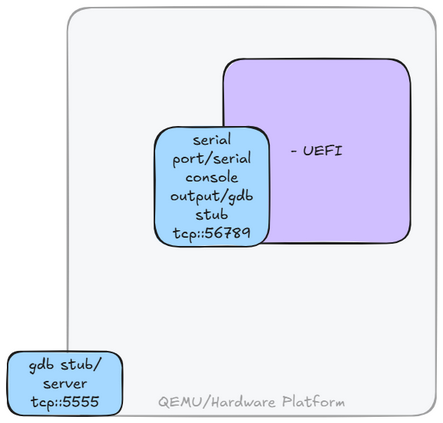
QEMU can expose two serial ports: one for software debugging and another for hardware debugging.
-
Software Debugging Serial Port Used for communicating with the UEFI SW debugger.
-
Hardware Debugging Serial Port Used for low-level QEMU hardware debugging.
Each serial port can be used independently or simultaneously. Both expose the GDB Remote Serial Protocol.
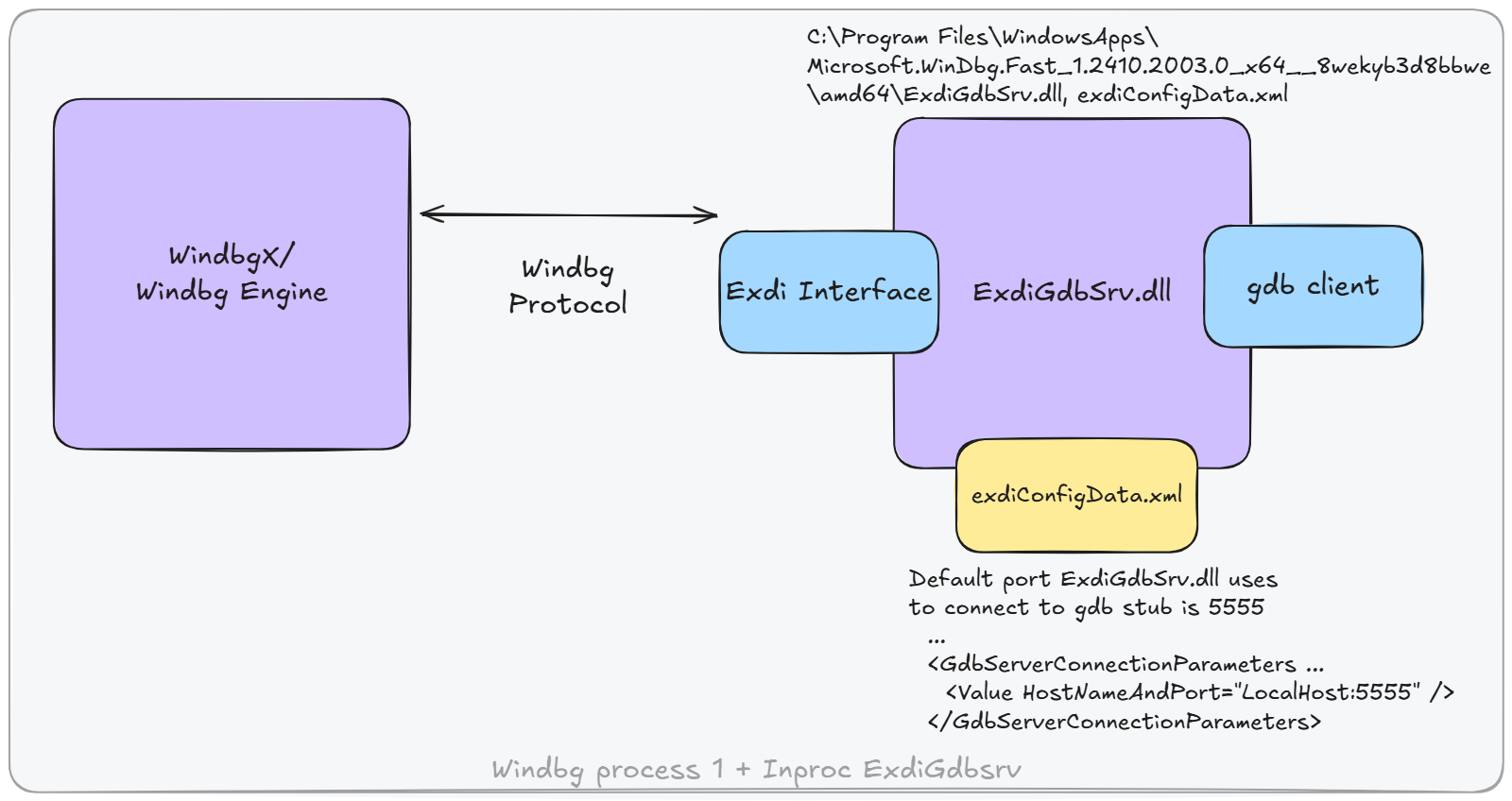
WinDbg communicates with QEMU using the EXDi Interface. The EXDi interface allows WinDbg to interact with transports like the GDB Remote Serial Protocol that QEMU provides.
The ExdiGdbSrv.dll in WinDbg acts as a GDB client.
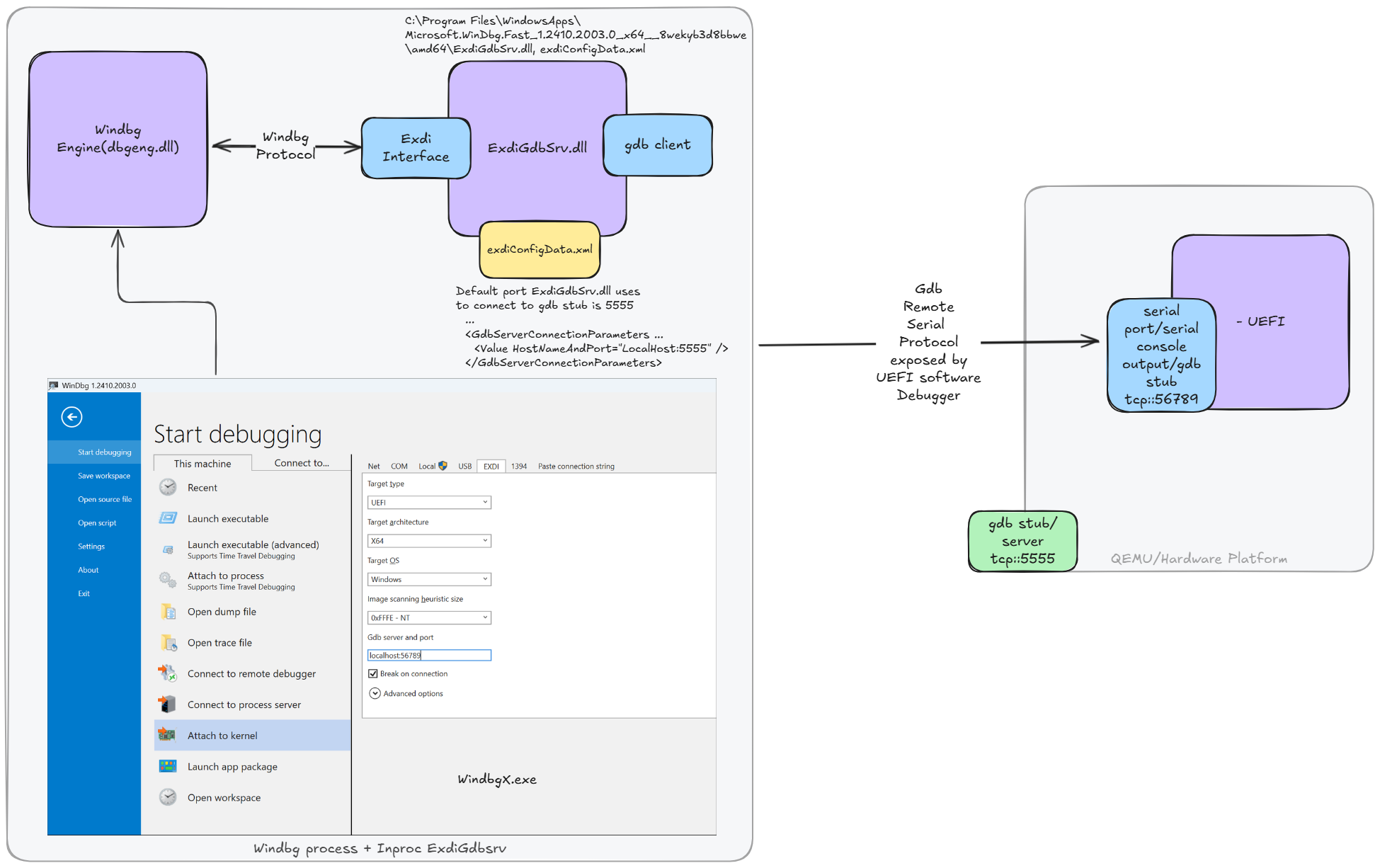
End-to-End Communication Flow
Software Debugging: WinDbg ↔ EXDi ↔ GDB Stub ↔ Serial Port ↔ UEFI Debugger
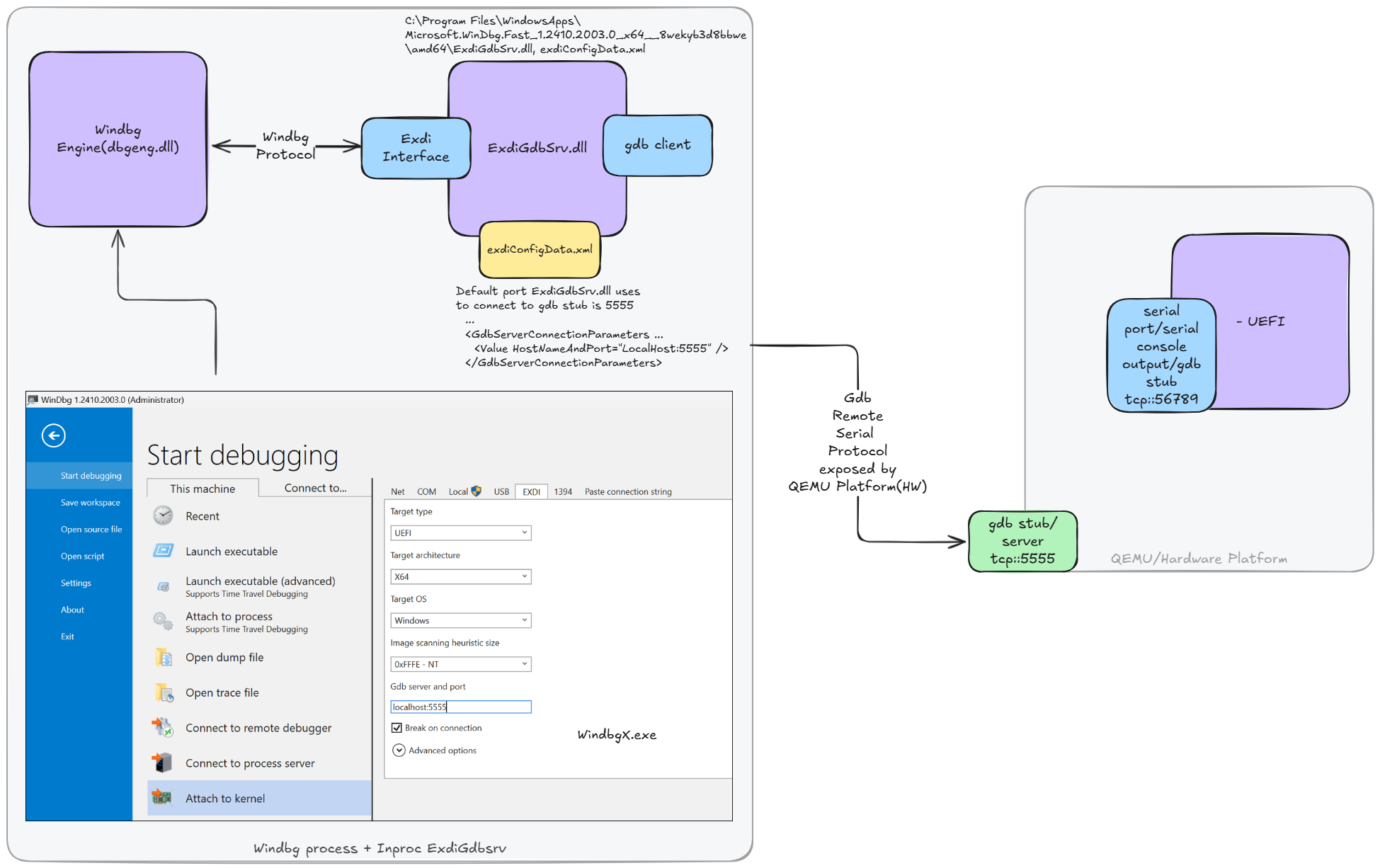
Hardware Debugging: WinDbg ↔ EXDi ↔ GDB Stub ↔ Serial Port ↔ QEMU HW
Setting Up WinDbg
- Download and install WinDbg.
- Verify that
ExdiGdbSrv.dllandexdiConfigData.xmlwere installed into theC:\Program Files\WindowsApps\Microsoft.WinDbg.Fast_1.xxxxxxxxx\amd64directory. - Download the latest release of the UEFI WinDbg Extension from uefi_debug_tools releases.
- Extract its contents to
%LOCALAPPDATA%\Dbg\EngineExtensions\.
Launching Patina QEMU UEFI with Debugging Enabled
The patina-qemu UEFI platform build, by default, uses a pre-compiled DXE Core binary from a NuGet feed provided by
the patina-dxe-core-qemu repository. Since these
binaries have debug disabled, the following steps enable debug and override the default.
The following steps are for the Q35 build, but the same can be done for the ARM Virt build. They use the build
command-line parameter BLD_*_DXE_CORE_BINARY_OVERRIDE to override the current DXE Core with the new file. For other
options such as patching a UEFI FD binary, see the Rapid Patina Iteration page.
-
Clone the Patina DXE Core QEMU repository into a new directory.
-
Build it:
- Debug build (debugger included):
cargo make q35 - Release build:
cargo make q35-release --features build_debugger
- Debug build (debugger included):
-
The output file will be:
/target/x86_64-unknown-uefi/debug/qemu_q35_dxe_core.efiThe output
.efifile contains only the.pdbfile name, not the full path. When using WinDbg, set the path to the directory containing the.pdbfile appropriately (as described in Software Debugging). -
Return to this repository's directory and rebuild the
patina-qemuUEFI using theBLD_*_DXE_CORE_BINARY_OVERRIDEcommand-line parameter to indicate which override DXE Core driver to use:stuart_build -c Platforms/QemuQ35Pkg/PlatformBuild.py GDB_SERVER=5555 SERIAL_PORT=56789 --FlashRom BLD_*_DXE_CORE_BINARY_OVERRIDE="<patina dxe core qemu repo path>/target/x86_64-unknown-uefi/debug/qemu_q35_dxe_core.efi" -
The
stuart_buildcommand will also launch QEMU and wait for the initial break-in: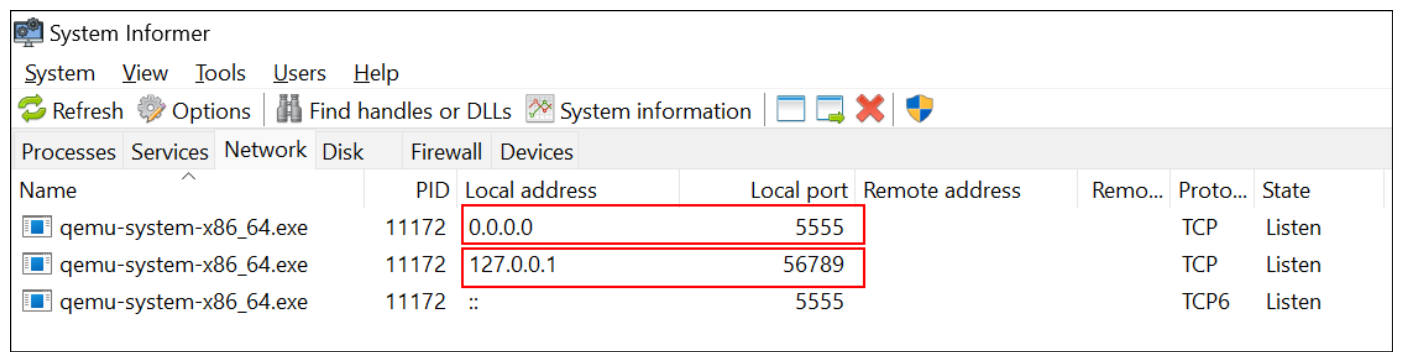
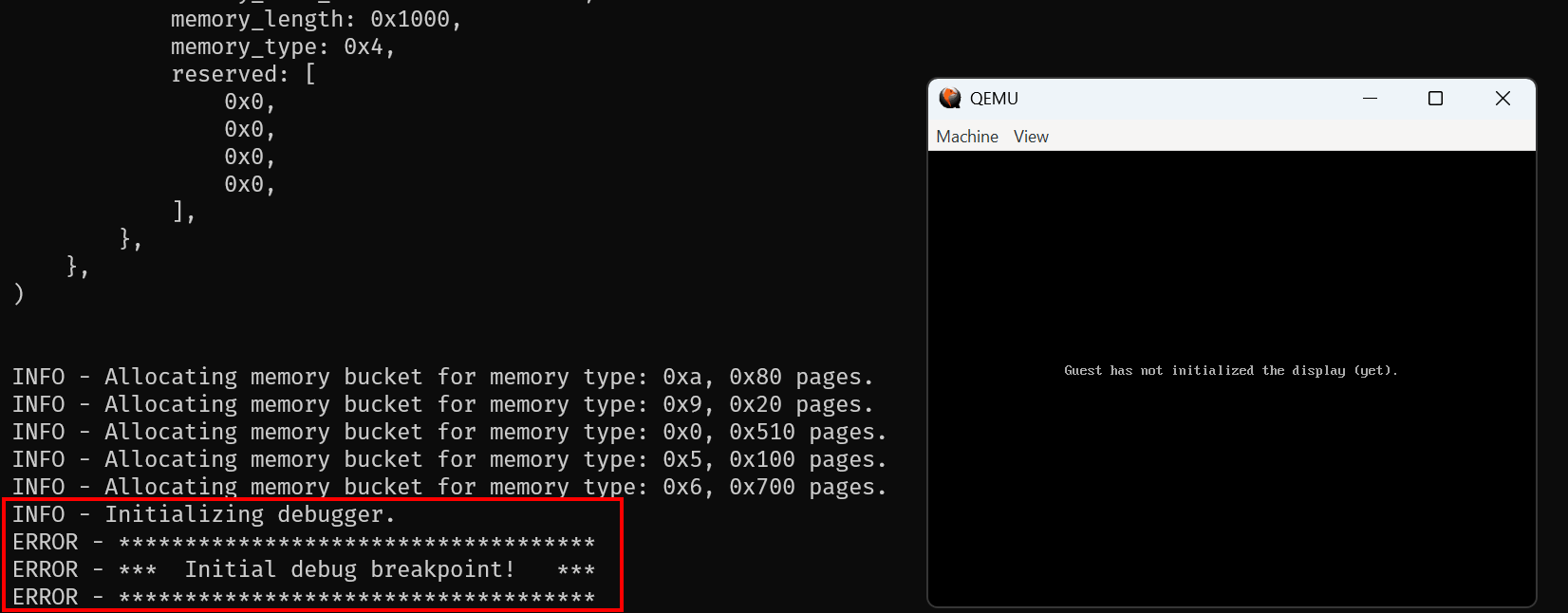
Launching WinDbg Instances
Instance 1: Software Debugging
-
Launch WinDbg. This will connect to the QEMU SW serial port (
56789).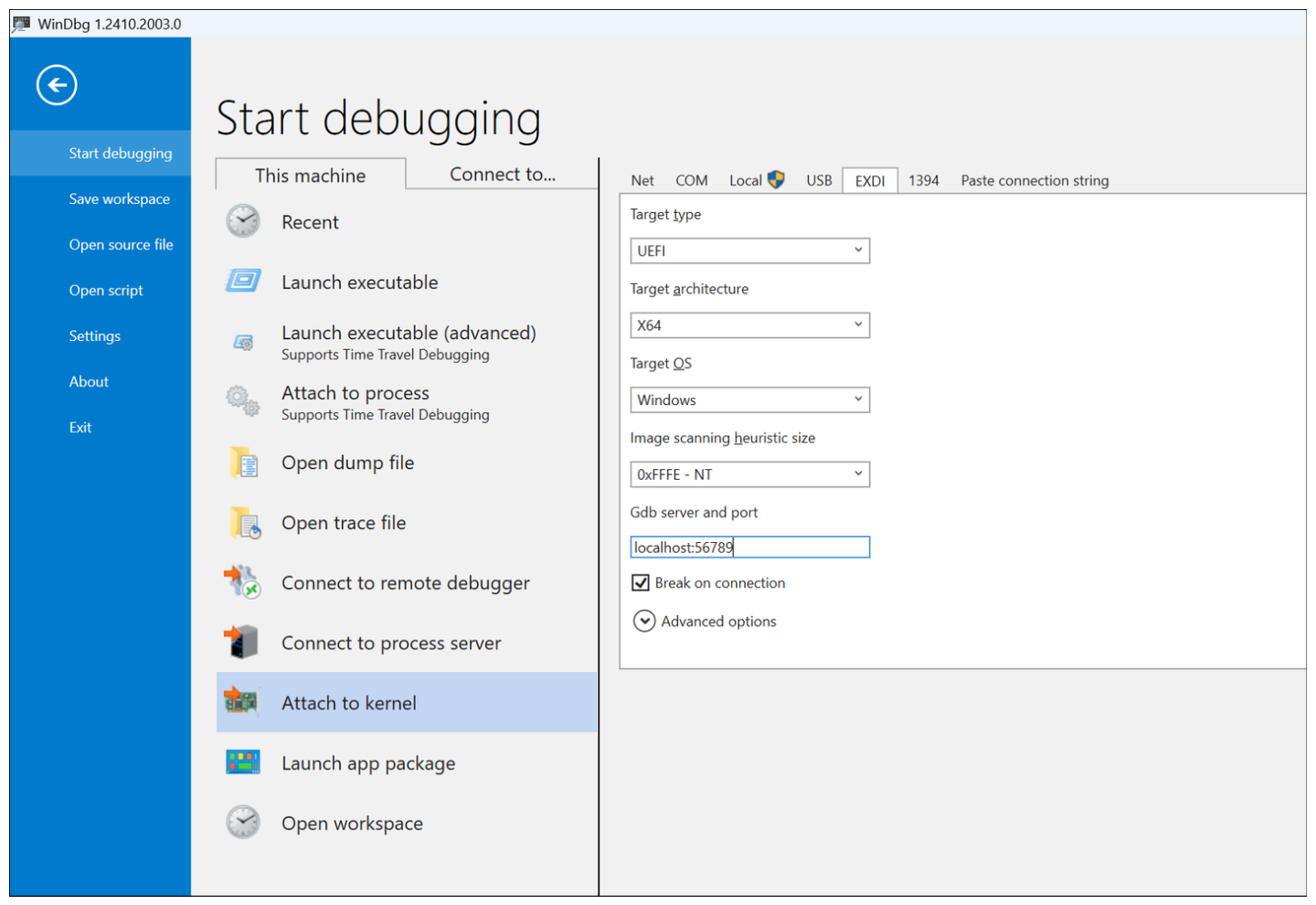
-
Set symbol and source paths:
.sympath+ <path to pdb dir> ; usually <cloned dir>\target\x86_64-unknown-uefi\debug\deps .srcpath+ <path to src dir> ; usually <cloned dir>\srcYou can avoid setting this for every debug session by configuring the
_NT_SYMBOL_PATHenvironment variable, for example:C:\repos\patina-dxe-core-qemu\target\x86_64-unknown-uefi\debug;C:\repos\patina-dxe-core-qemu\target\aarch64-unknown-uefi\debug;srv*c:\symbolspri*https://symweb.azurefd.net;srv*C:\Symbols*https://msdl.microsoft.com/download/symbols -
Initialize the UEFI debugger extension:
!uefiext.init -
!uefiext.helplists all available commands.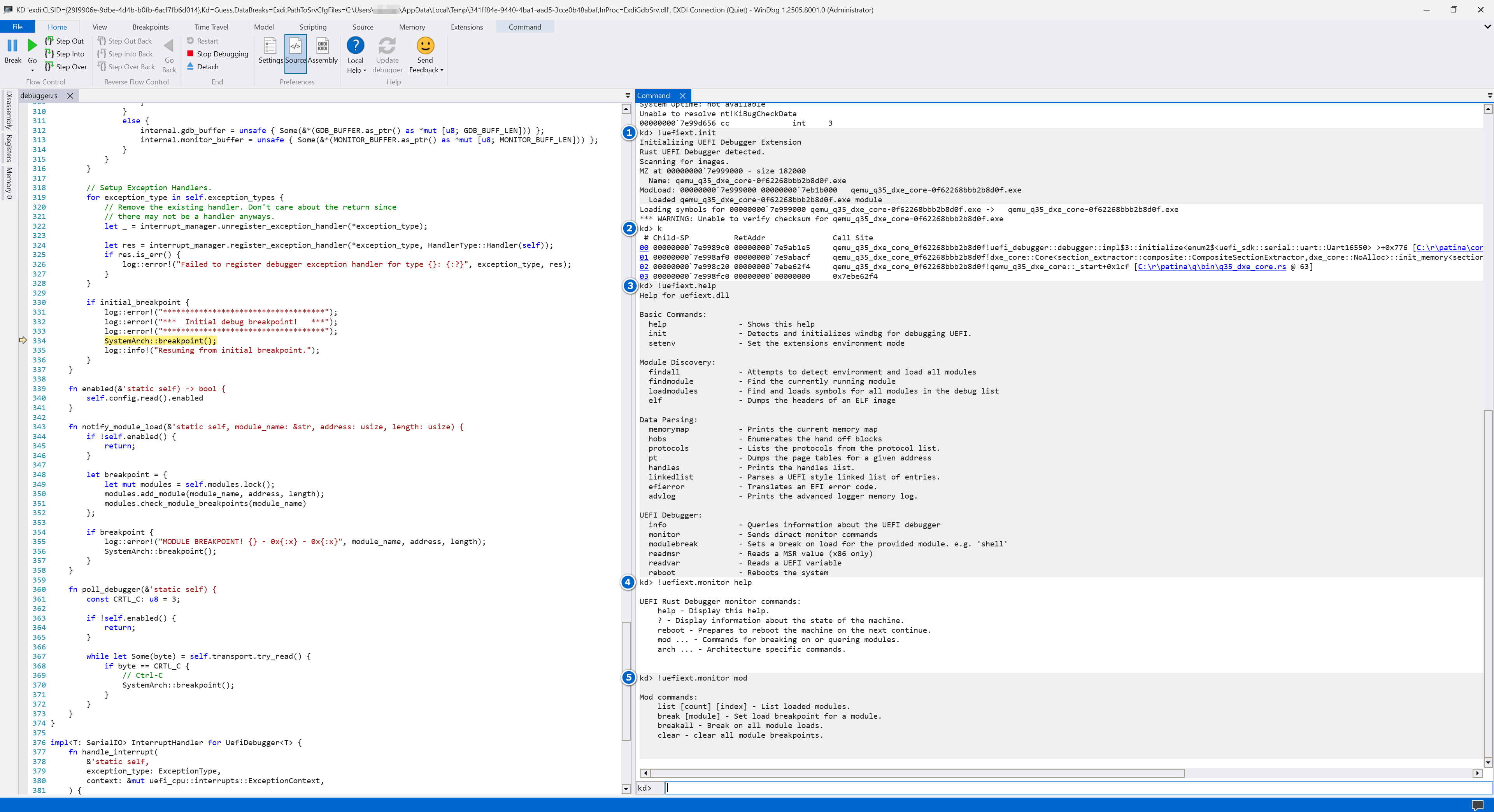
Instance 2: Hardware Debugging (Optional)
-
Launch another WinDbg instance.
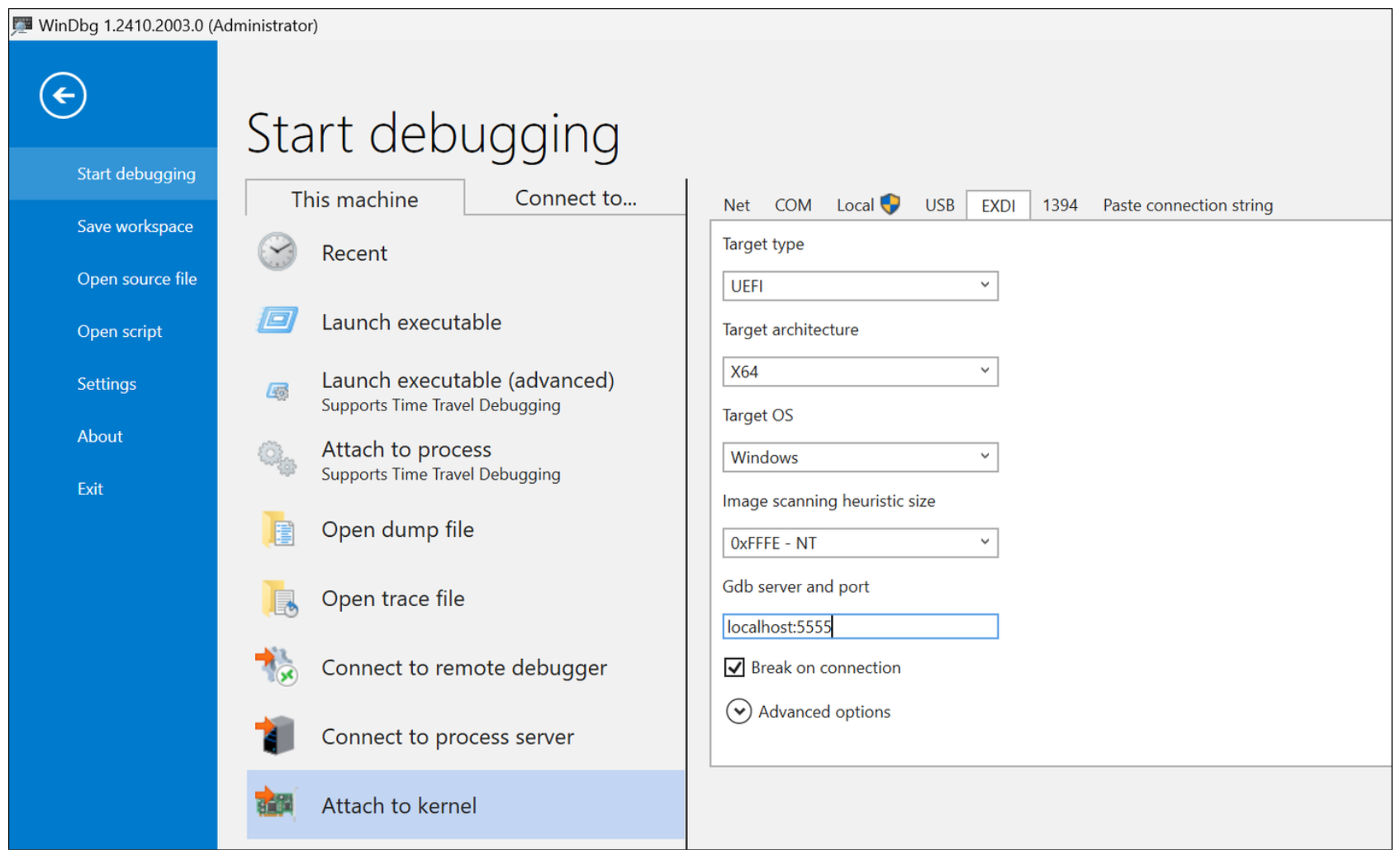
-
It should automatically connect to the QEMU HW serial port (
5555).